Projects, Conversations & Tasks
In SciClaw, the project is the basic unit for organizing work. Each project has its own Library, task list, and conversation space, and is used to hold a particular line of research or an ongoing stream of work.
You can think of these as a layered structure:
- Projects define the boundary of a distinct research effort
- Conversations are the day-to-day entry point for working with SciClaw
- Tasks handle more complex execution work that expands out of chat
After a task is completed, its conclusion document is added back into the project Library as reusable material for future work. This means SciClaw is not just a sequence of isolated chats. It builds up context around a project, accumulates results over time, and makes them available for later reuse and extension.
The purpose of this design is to keep different research topics, files, and ongoing work clearly separated. For research that unfolds over a long period of time and requires repeated supplementation and reuse of intermediate results, a project gives you a stable space to keep everything together.
1. The Sidebar
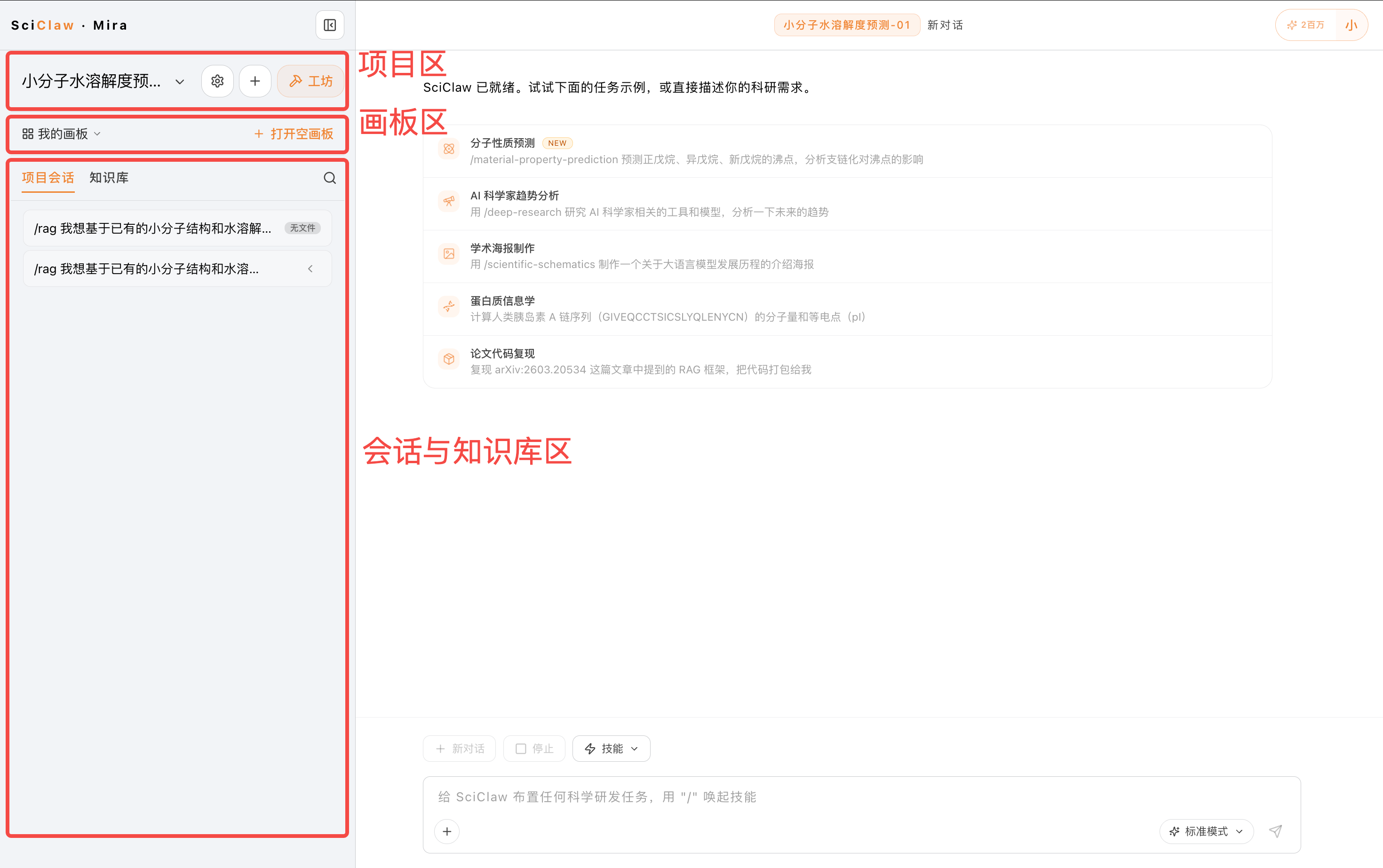
Overall sidebar layout: the project header on top, the board launcher, then the two tabs (Outputs / Library) and the content list below.
1.1 Collapsing and resizing
Need more room for the conversation? Use the toggle at the top to collapse the sidebar into a slim icon rail. Even when collapsed you can still switch projects, open a quick list of your conversations, and jump into the Library. To change its width, simply drag the sidebar's right edge until it feels right.
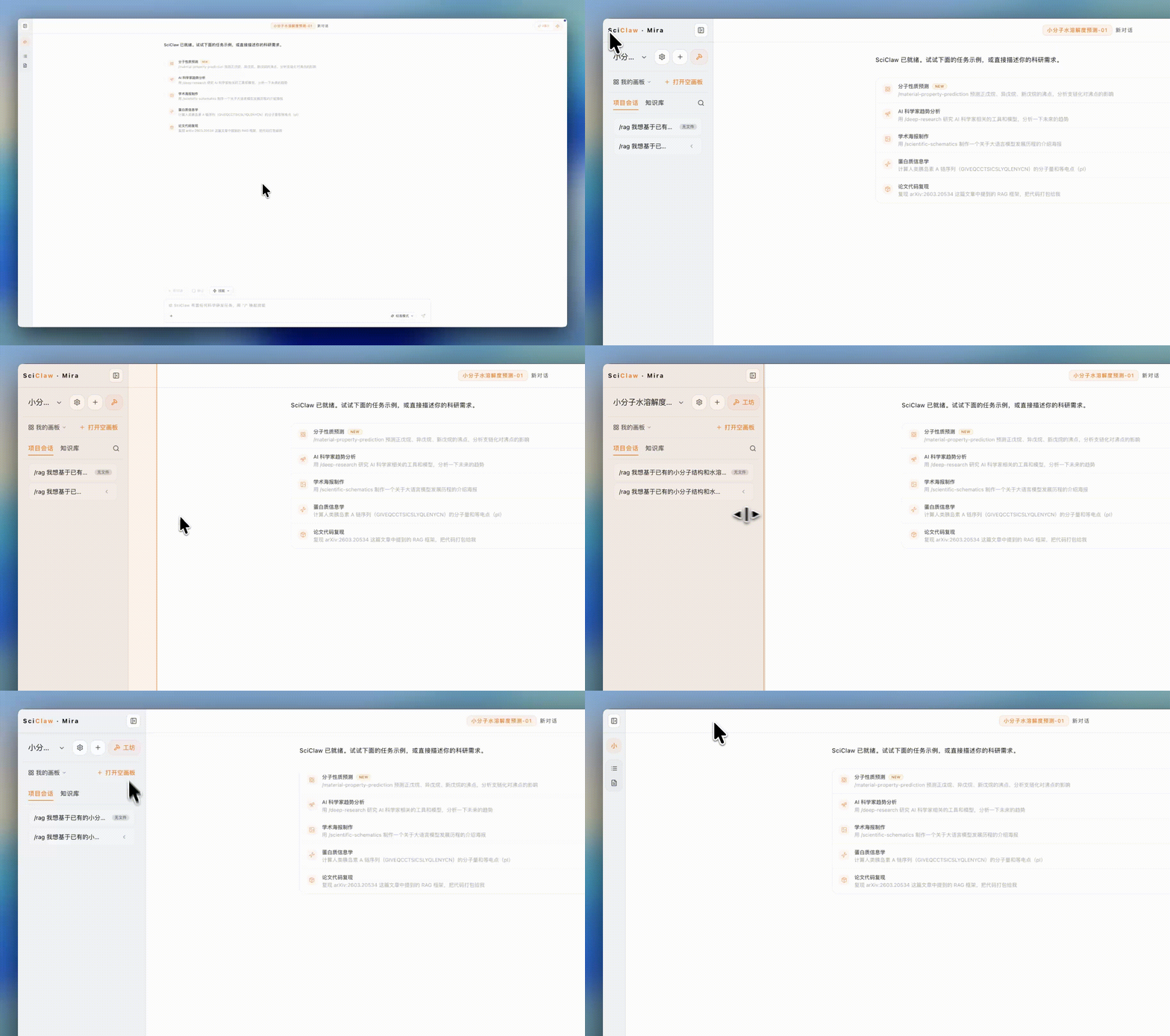
Collapsing and expanding the sidebar, and dragging the right edge to resize it.
1.2 The project header
The top of the sidebar is where you manage the project itself. From here you can:
- Click the current project name to open the project list and switch to another project.
- Use + Project to create a new one.
- Open the project actions menu (the gear icon) for Project settings (edit the description and manage referenced projects), Rename, and Delete Project.
- Open Foundry (🔨) to generate polished, deliverable documents.
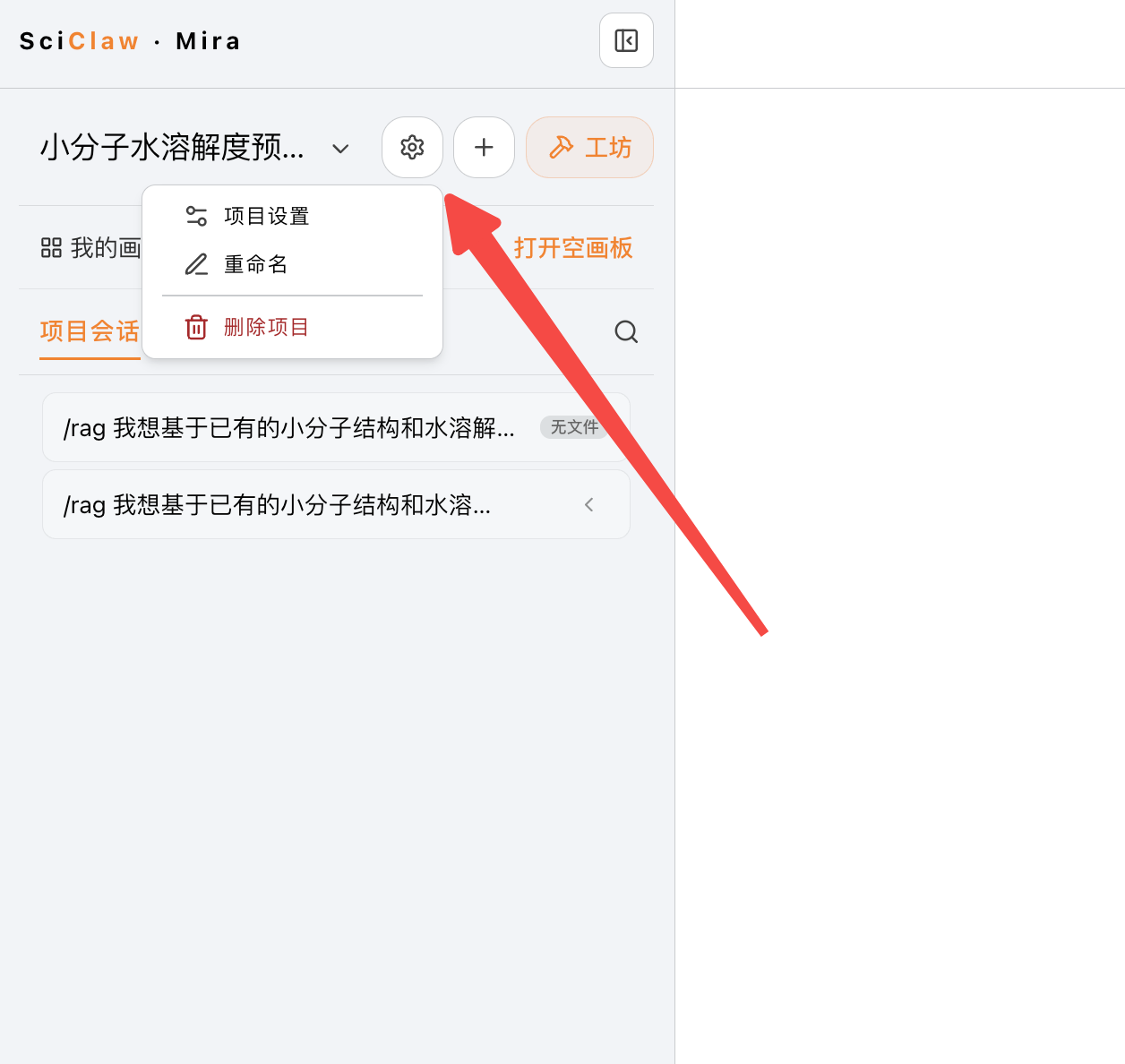
Project actions menu: Project settings / Rename / Delete Project.
1.3 The board launcher
2. Projects
A project is used to carry a relatively independent research topic, problem area, or collaboration theme. You can think of it as a dedicated workspace where all related conversations, files, task results, and accumulated knowledge are stored together.
A typical project usually includes:
- A conversation space for everyday discussion and exploration
- A task list for more complex, long-chain execution work
- A project Library for files, conclusions, and reusable materials
2.1 Creating a Project
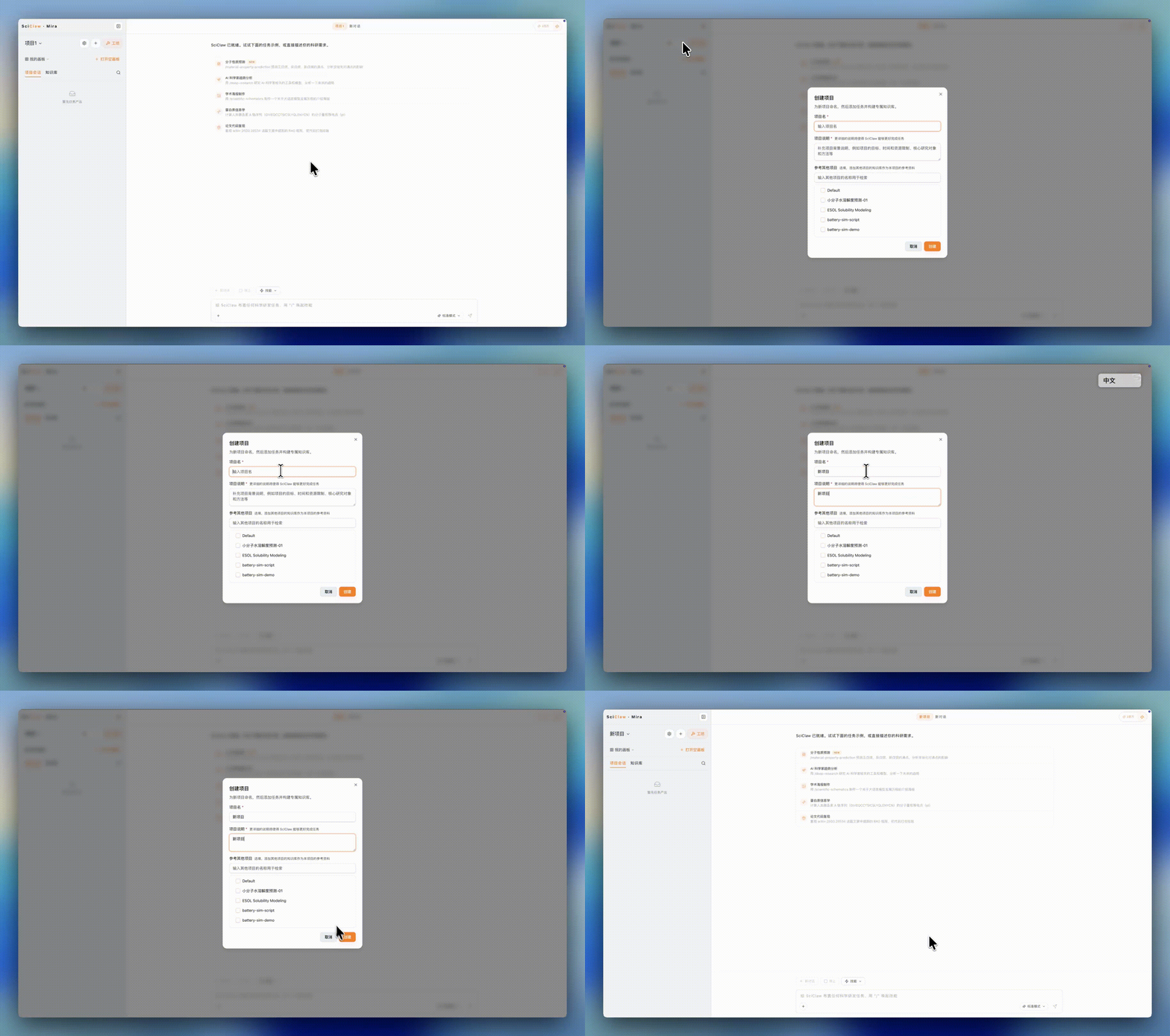
Create a project
2.2 Switching Projects
Click a project name in the sidebar and choose the project you want to enter from the expanded menu.
3. Conversations
In SciClaw, almost all capabilities are triggered through prompts. Asking questions, analyzing files, calling skills, launching complex tasks, and generating research outputs all usually begin in a conversation.
You can think of conversation as the unified entry point into the SciClaw workflow. For simple questions, SciClaw responds directly in the current chat. When a request requires a more complex process, it can branch out from the conversation and create a task to continue the work.
If you want the current conversation to reference materials already accumulated in the project, you can manually enable the Library toggle and turn on retrieval based on the project Library.
3.1 Starting a New Conversation
When you want to begin working on a new question, new idea, or new task, you can create a fresh conversation.
A new conversation is especially useful when you want to:
- Open a new line of research discussion
- Split different tasks into separate chat threads
- Avoid interference from earlier discussion history
- Explore different subproblems within the same project in parallel
3.2 Viewing and Deleting Past Conversations
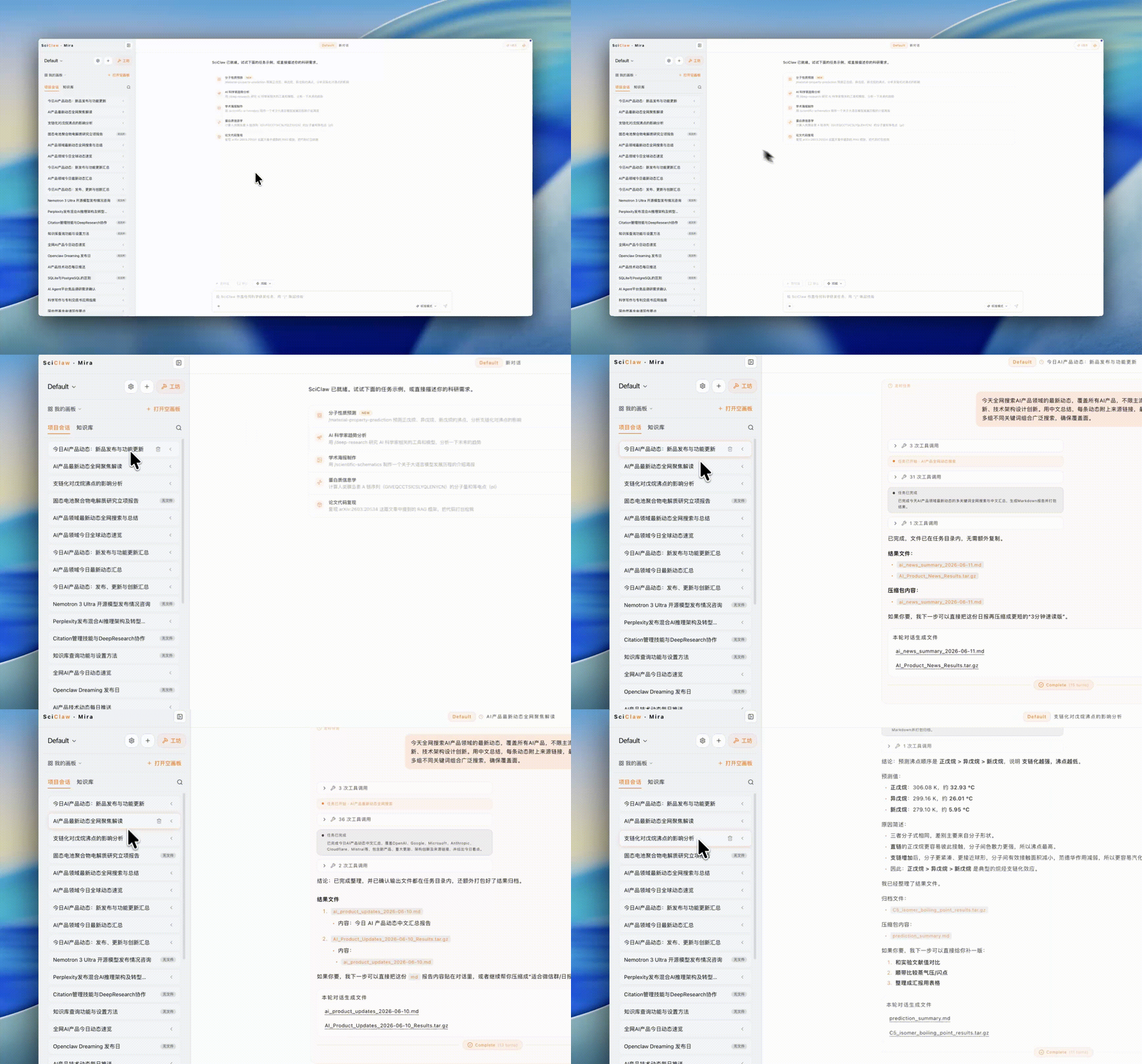
Once new conversations are created, earlier ones remain available in a list. You can open the conversation list to search, switch to, or delete past chats.
Deleting a conversation removes it from the current project's conversation list, but does not affect other conversations, tasks, or Library content within the same project.
3.3 Using Skills in Conversation
Many of SciClaw's capabilities are not exposed as fixed buttons. They are triggered through instructions inside the conversation.
You can think of skills as internal capability modules that SciClaw can call for more specialized, structured work such as analysis, file handling, data operations, or coordination with external tools.
You can trigger skills in several ways:
- Type / in the input box and choose a skill from the list
- Describe your goal directly and let SciClaw decide whether a skill should be used
- Click ⚡ Skills above the chat box and select a skill from the menu
This keeps SciClaw's workflow centered on conversation instead of forcing you to jump back and forth between many separate menus and feature panels.
3.4 Uploading Files into Conversation
In chat, you can upload files directly and discuss them with SciClaw.
Uploaded files can be used to:
- Ask SciClaw to read and explain the content
- Extract key points, summarize structure, or answer questions
- Continue with comparison, analysis, or reorganization based on the file
- Use the file as input material for downstream tasks
4. Tasks
You can think of a task as an explicitly launched execution flow. Compared with ordinary chat, tasks are for work that needs to actually be carried out, such as multi-step analysis, complex tool coordination, longer reasoning chains, or anything that should produce a more complete result.
Tasks in SciClaw have several defining characteristics:
- They are triggered from conversation and recorded as independent work units inside the project
- They produce structured conclusion documents that can be reused and traced later
- They can be stopped at any time, while already generated output files remain accessible
4.1 Task Management
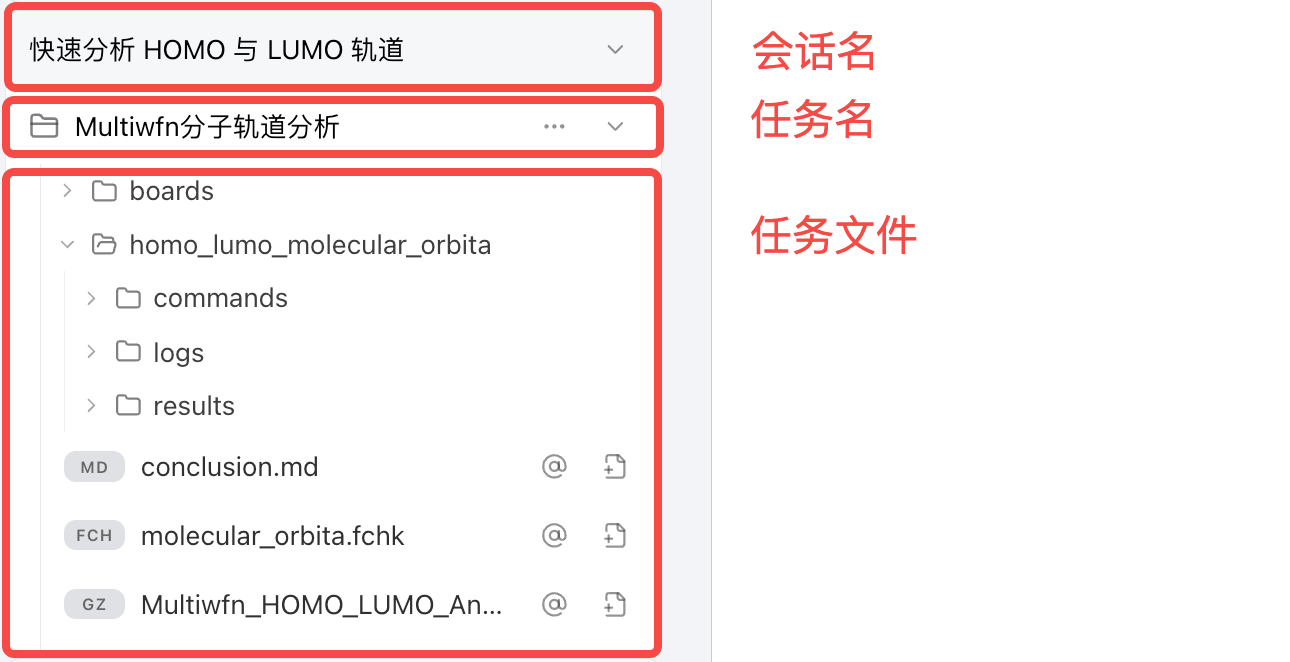
Outputs tab: the session → task → output-file tree, with a running-task indicator.
Following a task's status
While a task is running, its folder shows a small blue badge with a spinner. Once it finishes, the badge disappears and the folder simply holds its output files — so a quick glance down the tree tells you what's still in progress.
Task actions
- Locate origin message — jump back to the chat message that started the task.
- Delete folder — remove the task record together with its files (SciClaw confirms before anything is deleted).
Working with output files
Each file in a task offers a couple of quick actions when you hover over it:
- Click the file name to preview it in the panel on the right.
- Reference it in chat — click the @ icon, or drag the file onto the message box, to attach it as a reference.
- Add to knowledge base — promote the file into the project Library. If it's already there, the icon shows a green check instead.
Task Details
A task detail page usually includes:
- Task status
- Start and end time
- Token usage
- Execution duration
- Skills used
- All output files
- An execution summary
These details help you understand what the task did, which tools were used, what files were produced, and what conclusions were reached.
4.2 Result Accumulation
This conclusion document is the final distilled output of the task. It preserves the core conclusions, key results, and the most useful organized information for later continuation or reuse.
In SciClaw, conclusion documents are automatically added to the project Library, so they can be retrieved later once Library retrieval is enabled.
4.3 Scheduled Tasks
Typical use cases include:
- Tracking updates on a research topic on a recurring basis
- Generating daily, weekly, or monthly summaries
- Running a fixed analysis workflow on a schedule
- Delivering results to a team at a specific time
- Automatically creating a new execution task inside a project
The core purpose of scheduled tasks is to turn one-off actions into repeatable, ongoing automation.