Library & Foundry
1. Project Library
The Library mainly gets content from two sources:
- Task result accumulation: after a task completes, SciClaw condenses the result into conclusion.md and adds it to the current project Library automatically.
- Files uploaded in conversation: files uploaded during chat in the current project are also added directly to the project Library.
This keeps important materials from being scattered across separate conversations and makes them easier to review, manage, and reuse later.
1.1 Library and Retrieval
Files in the Library do not participate in retrieval reliably by default.
This means:
- With the Library enabled, SciClaw reliably retrieves from the project Library
- Without it enabled, files may still be stored there, but retrieval is not triggered consistently
This design gives you explicit control over when project materials should actively participate in later work as retrieval context.
1.2 Library Management
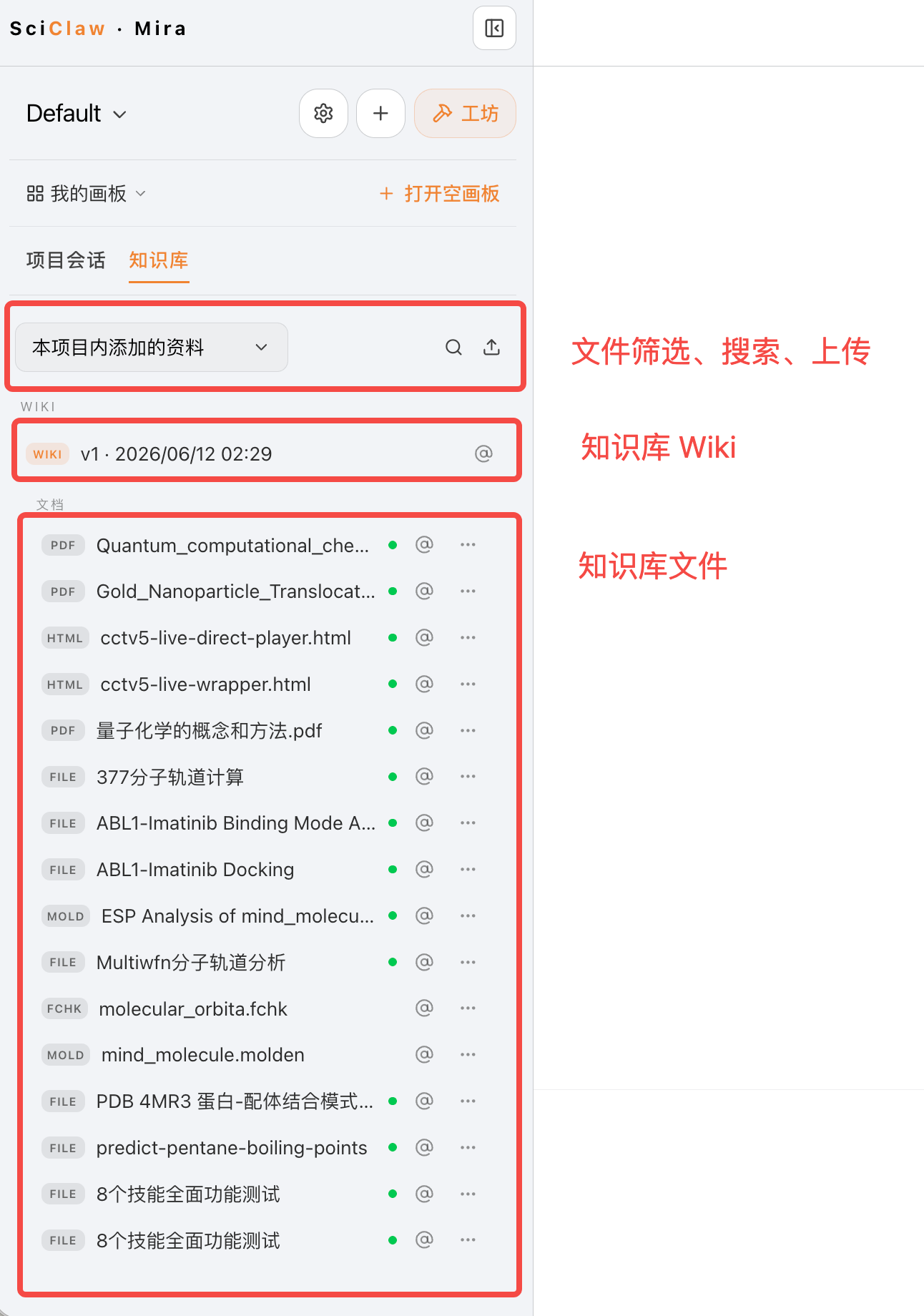
Library tab: source switcher, file filters, the Wiki row, and files grouped by category.
This project vs. referenced projects
A source switcher at the top of the tab lets you flip between two views:
- Files in this project — material that belongs to the current project, with the full set of management actions.
- From referenced projects — read-only files pulled in from other projects you reference (more on this below).
You can switch to either view at any time — even before you've added any references, where the referenced view simply shows an empty state with a shortcut to set them up.
Browsing and managing files
- Click a file to preview it in the right panel
- Reference it in chat with the @ icon, or by dragging it onto the message box
- Download or delete it from the file's ⋯ menu
Adding files
There are two ways to add material to the Library:
- Add Document — upload one or more files. Drag-and-drop is supported, with per-file progress, an upload history, and a confirmation if you try to close mid-upload.
- Add to knowledge base — promote a task output or an uploaded file so it can be retrieved by semantic search in your conversations.
1.3 Project Wiki
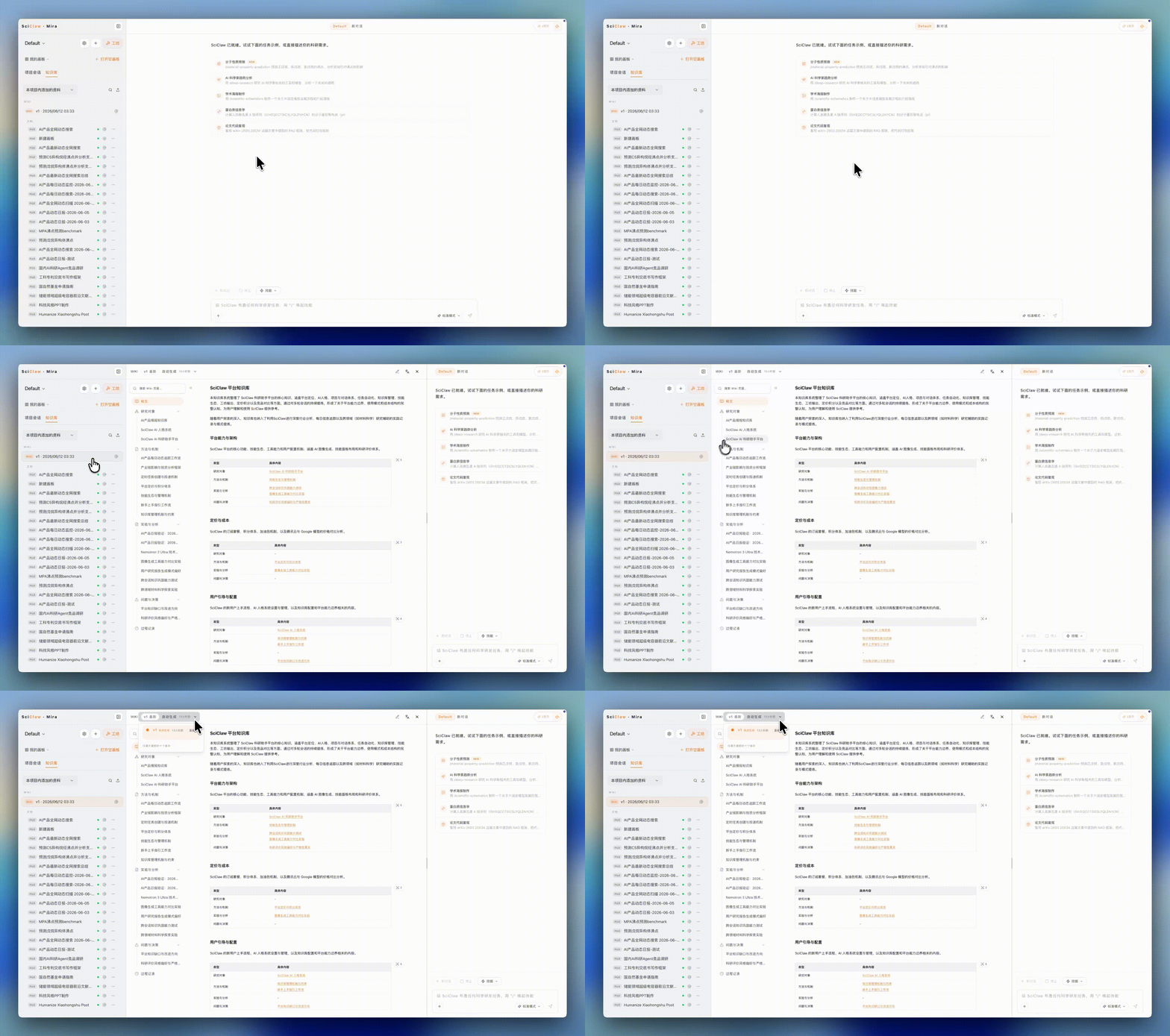
The project Wiki interface.
1.4 Referencing other projects
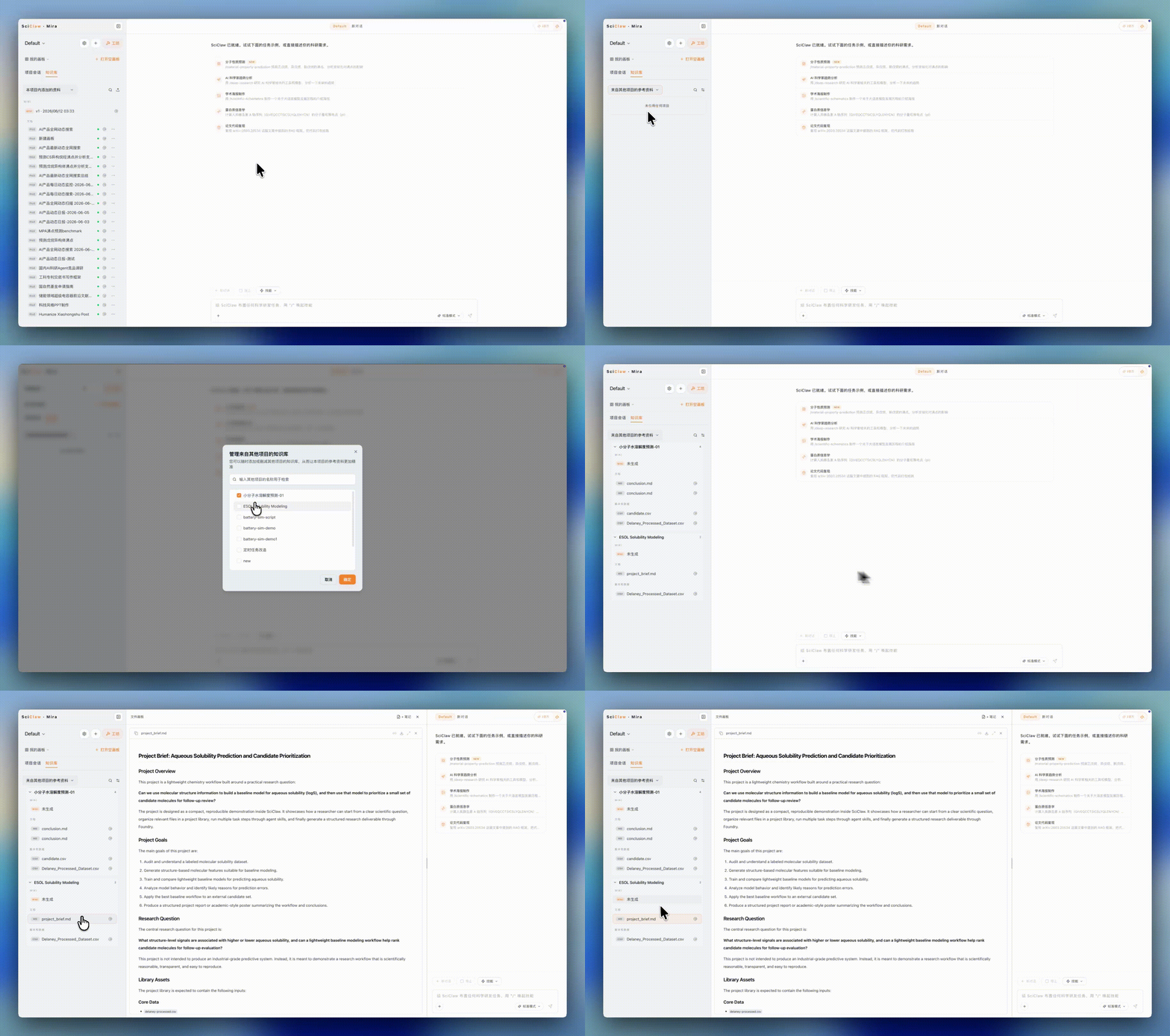
Manage referenced projects dialog and the read-only referenced library list.
1.5 Usage Tips
If you want SciClaw to reliably reference accumulated project materials, organize the relevant files first and then manually enable the Library toggle in chat.
If you are only uploading files for archiving, cleanup, or later use, you can leave retrieval off and simply keep the files in the project Library.
This lets the Library serve both as a project material archive and, when needed, as a controlled source for retrieval-augmented work.
2. Opening Foundry
With a short prompt, SciClaw can use the content in your current project Library to generate outputs suitable for presentations, reporting, archiving, or downstream analysis. Foundry is especially useful for turning scattered project materials into more complete, structured deliverables such as slide decks, reports, academic posters, or structured datasets.
Click the Foundry button above the chat input box. The button is marked with a 🔨 hammer icon. Once inside, you can quickly configure a generation job around the current project by setting the topic, choosing an output type, selecting data sources, and editing the generation prompt.
3. Output Types
In Foundry, the first step is to choose an output type.
It is important to note that the output type is not a fixed layout preset. It is really a packaged default prompt. The final file format, content structure, and presentation style are still shaped by the prompt itself. You can continue editing the template to fit your specific needs.
| File Type | Description |
|---|---|
| Presentation (PPTX) |
|
| Academic Poster (PNG) |
|
| Web Report (HTML) |
|
| Structured Dataset (CSV) |
|
| Professional Document (Markdown) |
|
4. Workflow
Using Foundry usually involves three steps.
4.1 Set Topic and Format
Start by entering the research topic you want the output to focus on, for example “Mechanisms of NSCLC Drug Resistance,” and then choose the target output format.
The topic tells SciClaw the core scope of this generation job, while the output format shapes how the final result should be organized and presented.
4.2 Choose Data Sources
By default, Foundry uses all indexed content in the current project Library as source material.
In general:
- Use the project Library directly when the project already contains enough context
- Enable Public Materials when the topic needs broader background, literature review, or external references
4.3 Set Generation Prompt
After selecting an output type, SciClaw automatically loads a matching prompt template.
You can continue editing the prompt to specify requirements such as:
- Which research points should be emphasized
- What structure the output should follow
- Whether the content should be concise or detailed
- What writing style or presentation style should be used
These additions help the generated result fit your actual use case instead of staying at a generic template level.